
Bulk-upload listings from a spreadsheet
Host Premium and Host Enterprise can create up to 50 draft listings from one .xlsx file: download the template, fill one row per listing, upload, review the validation, create drafts, add photos, submit for review.
Who can use it
Bulk upload is available on the Host Premium and Host Enterprise plans (and to agents of an agency on those plans). Host Pro shows "Bulk upload is available on the Premium and Enterprise host plans." It is worth it from about five properties; for one or two, the wizard is faster.
The template
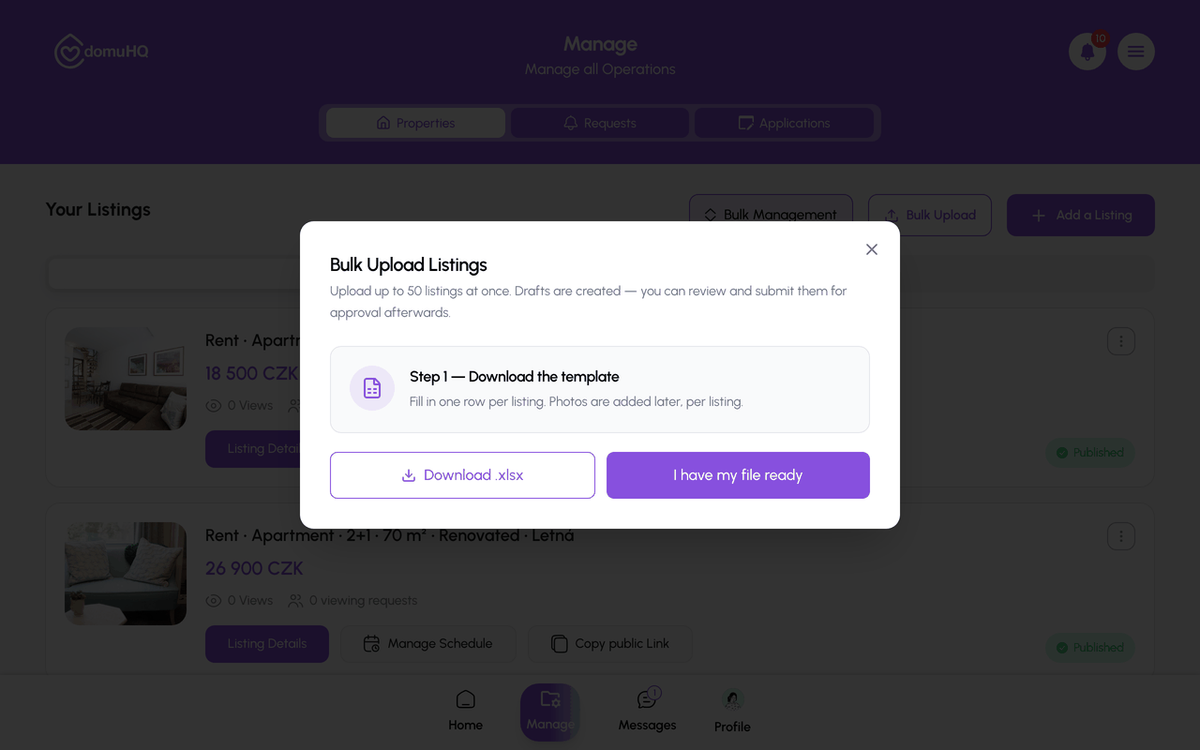
One .xlsx file, one row per listing, with a column for every text field of the wizard: address, layout, area, rent, deposit, utilities, availability date, amenities, policies, description. Sample rows show the expected format; validation rules are in the column comments. Photos are not part of the file.
Validation
After upload the preview lists Total rows, Valid, and Errors, and a table with Row, Field, and Message for each problem (missing required field, unknown value, wrong date format, and so on). Fix the file and re-upload, or tick Skip invalid rows and create only the valid ones. Limits: 50 listings per upload and a per-hour limit on uploads.
After Create drafts
The result screen shows how many drafts were created, with View drafts and Upload another. Under Manage, Drafts, open each draft to add photos and check the imported fields, then select the ones you want and tap Submit selected for review. Each goes through the normal review; verified businesses get the Verified badge automatically. Submitting more than your plan allows shows the tier limit error.
Bulk Management
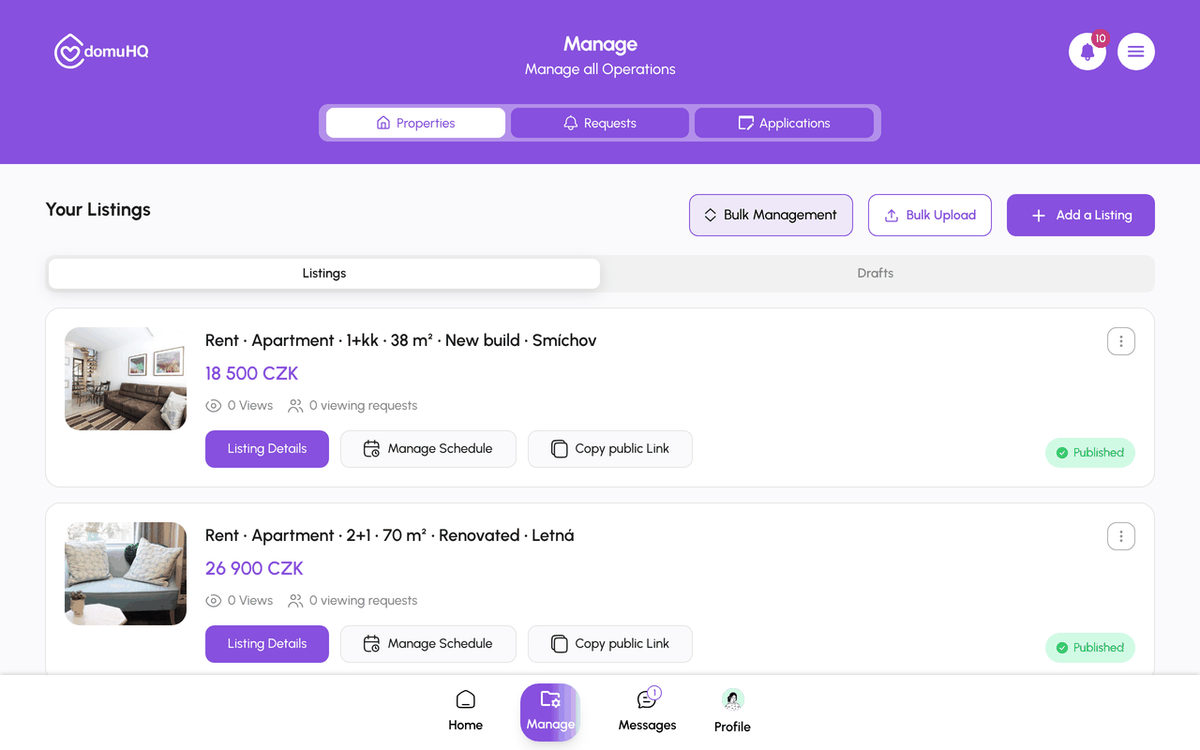
The Bulk Management button next to Bulk Upload lets you act on several published listings at once (availability, delete).
Step-by-step
- 1
Open Bulk Upload
5 secondsManage, Properties, then Bulk Upload.
- 2
Download the template
variesStep 1: Download .xlsx. Fill one row per listing; keep the column headers.
- 3
Upload and review
1 minuteStep 2: drop the file in. Read the Valid and Errors counts and the error table.
- 4
Create drafts
10 secondsFix the file or tick Skip invalid rows, then Create drafts.
- 5
Add photos and submit
variesManage, Drafts: open each draft for photos, then Submit selected for review.

Frequently asked questions
Why are photos not in the spreadsheet?
Files would be huge and slow. The text import is instant; photos are added per listing in Drafts.
Can I bulk-edit existing listings?
Bulk Upload creates new drafts only. Bulk Management covers availability and deletion for existing listings; field edits are per listing.
Same address twice in the file?
The preview flags it as a duplicate so you can decide (two units in one building is fine).
Related articles
Create a listing: the 7-step wizard
Property Details, Location Setup, Pricing, Features & Utilities, Policies & Rules, Photos & Media, Verify Documents. What each step asks, what is required, and what happens after Publish listing.
BeginnerManage listings: edit, availability, drafts, public link, delete
The Manage tab is the host dashboard: Properties, Requests, Applications. Each listing card has Listing Details, Manage Schedule, and Copy public Link; from the details page you edit, set availability, or delete.
BeginnerListing review, the Verified badge, and listing statuses
What In Review, Published, Reserved, Rented, Suspended, Verification Failed, and Re-upload Required mean, and how the Verified badge is earned.
Beginner