
Complete your profile and get the Verified badge
Raise your Profile Score with a real photo, a bio, lifestyle details, and photos, then verify your identity with a government ID and a selfie to earn the Verified badge.
Why bother
Other members decide in seconds. A card with no photo, no bio, and an Unverified badge gets skipped; the same person with a clear photo, two honest sentences, and the Verified badge gets replies. Every roommate and property card shows Verified or Unverified in the corner, so the badge is the first thing people notice.
Your Profile Score
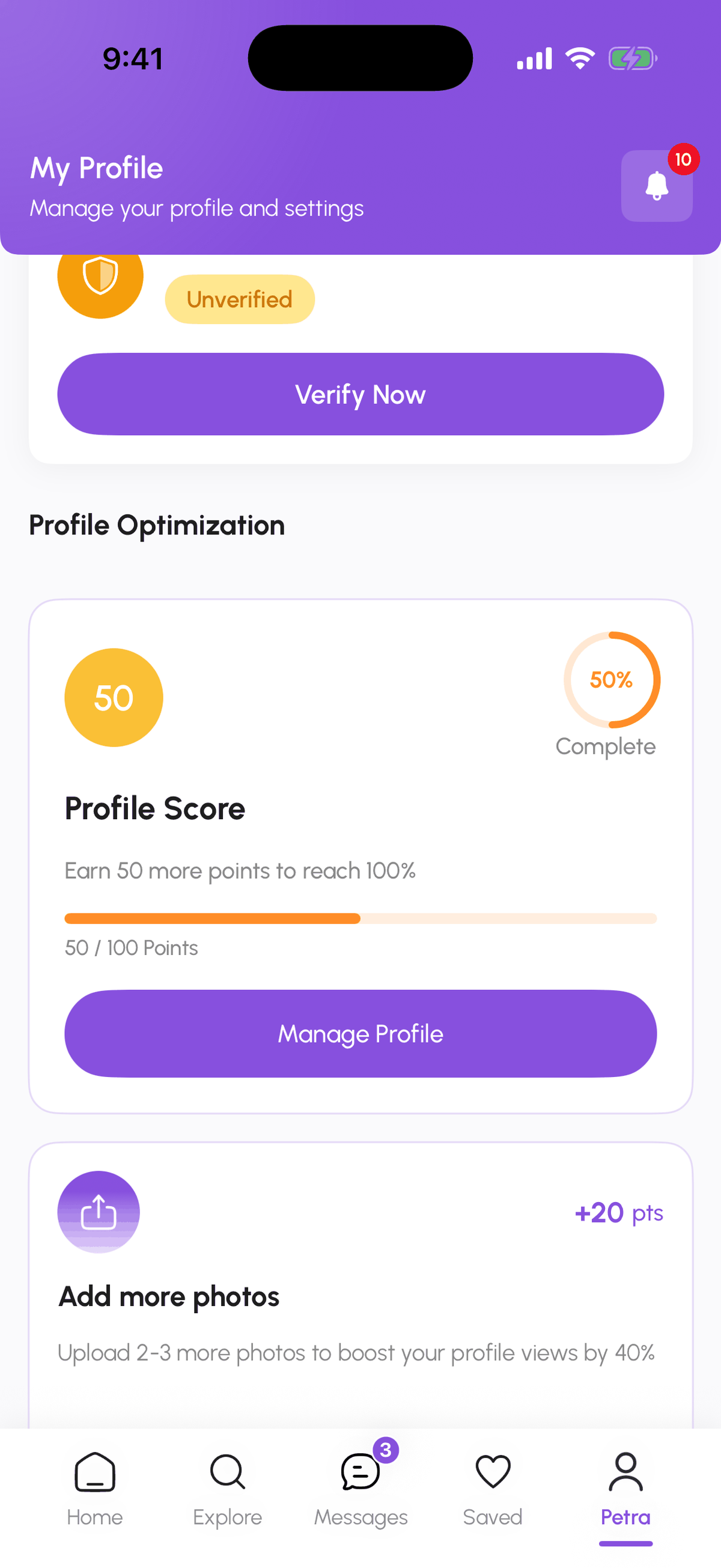
Open Profile, My Hub. Under Profile Optimization you see your score out of 100 and how many points are left. Tap Manage Profile to open the editor. Suggestions below the score (for example "Add more photos, +20 pts") tell you what earns the most.
What the editor contains
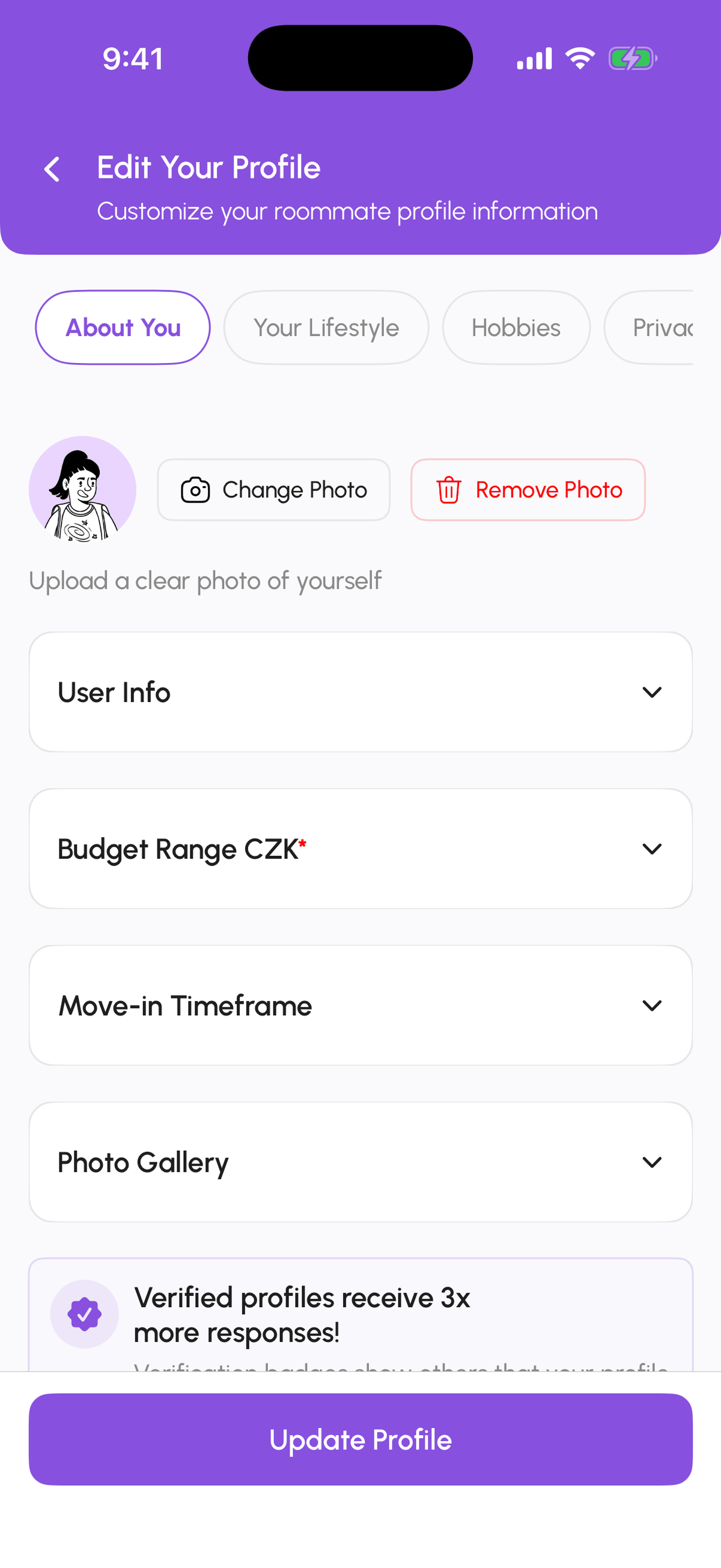
Edit Your Profile has four tabs for roommates: About You (photo, user info, budget range in CZK, move-in timeframe, photo gallery), Your Lifestyle (cleanliness, noise, sleep schedule, guests, smoking, drinking, and the compatibility assessment), Hobbies, and Privacy (who can see your profile, hide last name, hide exact location). Renters and hosts have their own, shorter editors. Tap Update Profile to save.
How identity verification works
DomuHQ uses Didit, an EU-based verification partner. From My Hub tap Verify Now. The "Verify Your Identity" screen explains the benefits and the three steps, then Start Verification hands you over to the partner:
- Take a photo of your government-issued ID (passport, national ID card, or driving licence).
- Take a short selfie so the partner can match your face to the ID.
- Come back to DomuHQ. Your status shows Verification In Progress and then Verified, usually within a few minutes.
If the partner needs a manual look, the status shows Pending Review and you get a notification when it is done. If verification is declined you see the reason and a Try Again button; there is no limit on attempts.
What Verified unlocks
- The Verified badge on your card, your profile, and your messages, everywhere on DomuHQ.
- Connection requests and messaging (on DomuPlus and above; every plan is free until 2027).
- Better placement: verified profiles are prioritised in search results, and hosts can choose to see verified applicants first.
Privacy
Your ID and selfie are processed by the verification partner under a data-processing agreement and are never shown to other members; they only see the badge. You can withdraw your verification consent by writing to privacy@domuhq.cz, see Your GDPR rights.
Step-by-step
- 1
Open My Hub
5 secondsProfile, then the My Hub tab. Your plan, verification status, and Profile Score are all here.
- 2
Improve your Profile Score
5 minutesTap Manage Profile. Add a clear photo of your face, fill in User Info, your budget range and move-in timeframe, and add two or three gallery photos. Tap Update Profile.
- 3
Start identity verification
30 secondsBack in My Hub tap Verify Now, read the Verify Your Identity screen, and tap Start Verification.

- 4
Photograph your ID and take a selfie
2 minutesFollow the partner's prompts. Hold the document flat in good light and avoid glare.
- 5
Check your status
a few minutesReturn to My Hub. Verification In Progress becomes Verified once the check completes. You also get a notification.
Frequently asked questions
Which documents are accepted?
A valid passport, national ID card, or driving licence. The document must not be expired and both sides may be requested.
How long does it take?
Most checks finish within minutes. A manual review (Pending Review) can take up to a day; you are notified either way.
Do I verify again for another role or after a plan change?
No. Verification belongs to your account, not to a role or a plan, and stays with you.
Who can see my ID?
Nobody on DomuHQ. Members only see the Verified badge next to your name.
My verification was declined. What now?
Open My Hub to read the reason (for example a blurry photo or an expired document) and tap Try Again. If it keeps failing, write to support@domuhq.cz.
What to do next
- The compatibility assessment: how match scores work20 questions drawn from a bank of 110, based on the Big Five personality model, plus your lifestyle answers. Together they produce the match percentage you see on every roommate card.
- Find roommate matches and connectBrowse your Top Compatibility Matches, filter Discover by budget, location, lifestyle, and verification, open a profile, tap Say Hello, and take it to chat once they accept.
Related articles
Your Profile tabs: My Hub, Preferences, Data & Security, Legal, Help & Support
A map of the Profile page: where your plan and verification live, how to change language, theme, and notifications, where to change your password or export your data, and where to get help.
BeginnerStay safe on DomuHQ: scams, reporting, and blocking
Never pay before you have seen the place and met the host, keep the conversation on DomuHQ, and use Report and Block the moment something feels off.
BeginnerYour GDPR rights on DomuHQ
DomuHQ runs from the Czech Republic and complies with EU GDPR. Your rights: access, rectification, erasure, restriction, objection, portability, withdraw consent, complain to the regulator. Here is how to use each one.
Intermediate