
Handle requests and review applications as a host
Connection, viewing, and application requests all arrive under Manage, Requests. Open the applicant, check the Verified badge and their answers, request documents if needed, then Accept Application or Reject.
Three kinds of requests
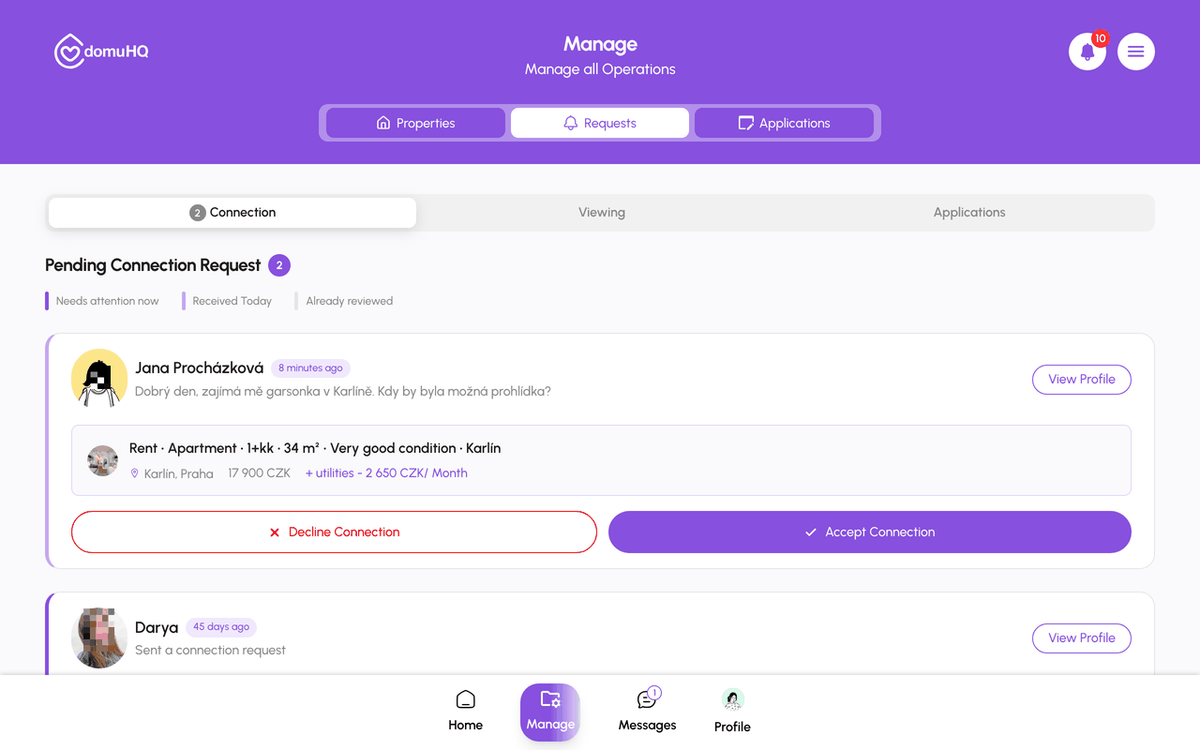
- Connection: a renter tapped Contact on your listing. Accept to open the chat; decline if it is not a fit. Until you accept, they cannot message you.
- Viewing: a renter booked one of your available slots. Accept, Decline, or propose another time. Confirmed viewings show on Home under Upcoming Viewings.
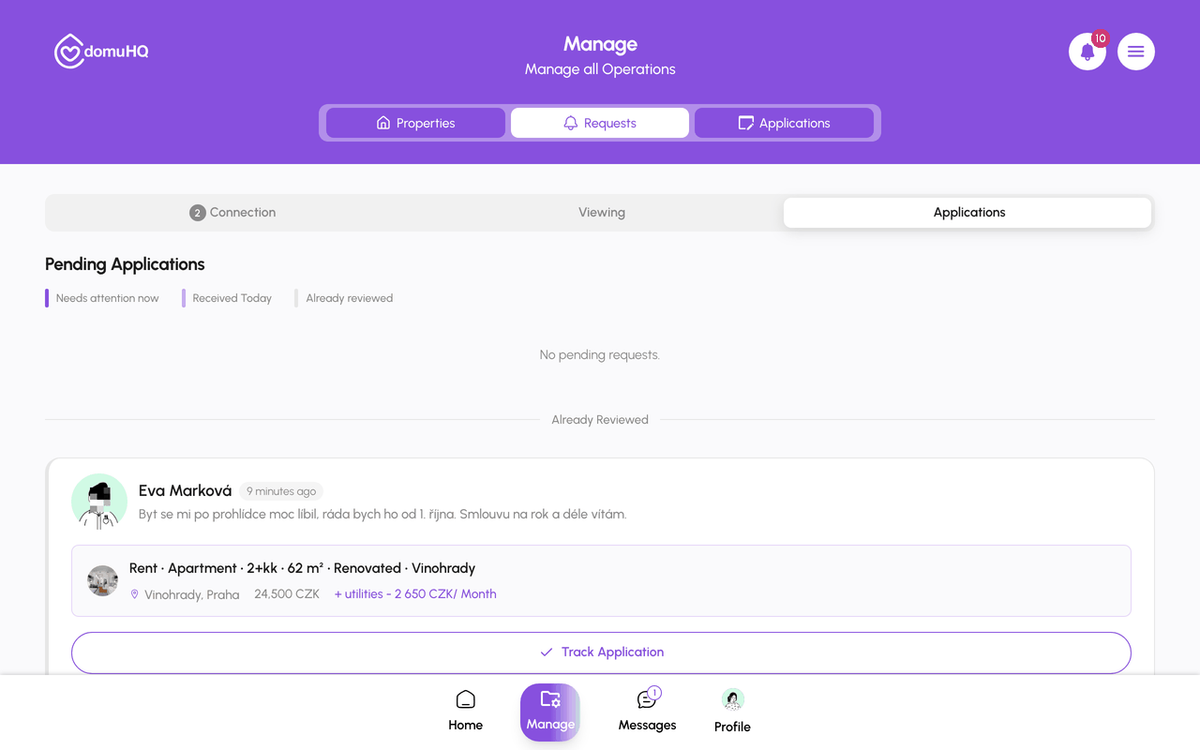
- Applications: the renter (or a Squad) tapped Apply for Apartment in the chat.
What an application contains
Open View Profile on a connection or application to see the person's card: age, occupation, bio, Budget Range, Move In Time-frame, Compatibility Score (room listings), Interests & Hobbies, Preferences, and Deal Breakers, with Decline Connection and Accept Connection underneath.
What to look at first
- Verified badge: identity confirmed by ID and selfie.
- Move-in timeframe versus your available-from date.
- The message: did they engage with the listing or paste the same text everywhere?
- Employment and length of stay in their template answers.
Requesting documents
Tap Request Additional Documents on the application and pick what you need (proof of income, employer confirmation, guarantor letter, ID copy). The applicant is notified and uploads into the same conversation; documents stay attached to the application.
Deciding
Accept Application moves it to Manage, Applications, sets the listing to Reserved, and opens Track Application for both sides. Reject sends the applicant a polite decline notification; you can add a note. Reply within a day: applications answered within 24 hours close far more often than ones left for a week, and a quick "still deciding, answer by Friday" keeps good candidates.
Squads
A Squad application is one card with every member. You accept or reject the whole squad and can request documents from individual members. Track Application then shows a Squad Overview tab with each member's status.
Step-by-step
- 1
Open Requests
5 secondsManage, then Requests. Switch between Connection, Viewing, and Applications.
- 2
Answer connection and viewing requests
1 minuteView Profile, then Accept Connection or Decline Connection. For viewings: Accept, Decline, or propose a new time.

- 3
Review an application
2 minutesApplications tab: open the applicant to read the profile, badge, and template answers.
- 4
Request documents if needed
30 secondsRequest Additional Documents, choose the types, send. Wait for the upload in the chat.
- 5
Accept or reject
10 secondsAccept Application to start the pipeline (the listing becomes Reserved), or Reject.

Frequently asked questions
Can I accept two applicants for one listing?
No. Accepting one sets the listing to Reserved. Reject the others, or keep them pending until the first deal is certain.
Does DomuHQ run credit checks?
No. Identity is verified; income and references are yours to request with Request Additional Documents.
What does the applicant see when I reject?
A generic decline notification, plus your note if you wrote one. Never who else applied.
What to do next
Related articles
Schedule and manage viewings
Hosts set a weekly availability schedule per listing; renters book a slot from the chat with Schedule a Viewing; both sides confirm, reschedule, or cancel from Requests and the chat.
BeginnerTrack your application from accepted to move-in
After a host accepts you, Track Application shows every step from lease to move-in, with a button when it is your turn. Here is the exact pipeline for each listing type.
IntermediateStay safe on DomuHQ: scams, reporting, and blocking
Never pay before you have seen the place and met the host, keep the conversation on DomuHQ, and use Report and Block the moment something feels off.
Beginner